
Your first session with Clio
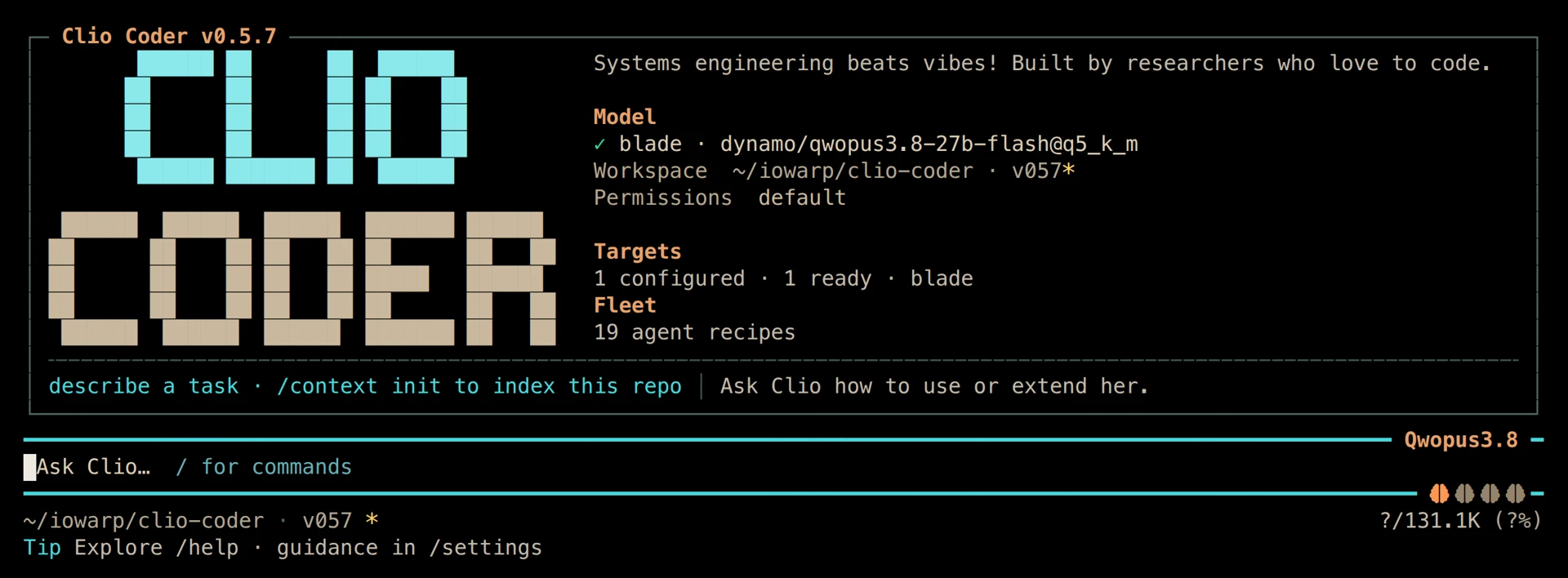
Clio Coder works in the repository you open. For your first session, give it a small, concrete task: explain how the project builds and runs its tests. That lets you see how it reads code and uses tools before asking it to make a change.
1. Install Clio
You need Node.js 22.19 or newer. Linux and macOS are the primary supported platforms.
npm install -g @iowarp/clio-coder
Open a terminal in a repository you know:
cd /path/to/your/project
clio-coder configure
2. Connect a model
Choose Guided setup, then select an app on this computer, a model server, an AI subscription, or a provider account. Clio helps you choose a model and review the connection before saving. Choose a model that supports tool calling.
Connect by endpoint is the shortcut when you already know the URL. LM Studio commonly serves at http://localhost:1234; Ollama commonly serves at http://localhost:11434. The connection guide covers setup and credentials.
If a connection fails, run:
clio-coder doctor
3. Open a workspace
Launch the terminal workspace:
clio-coder
Or open the desktop alpha in your browser:
clio-coder gui --open
In the desktop, select your project and start a conversation. If you have not configured a model, Guided setup is also available in the browser; terminal configuration is optional. For this tutorial, either interface gives you a place to enter the first request.
4. Ask a focused question
Try this request:
Explain how this repository builds and runs its tests. Identify the main entry points and suggest one verification task. Do not change files yet.
Follow the tool activity as Clio reads the repository. Review any permission request before allowing it. If the answer misses an important directory or build system, point Clio to it in a follow-up.
5. Make the next task specific
Once you understand the project, ask for a check you recognize:
Run the existing parser tests and report the results. Do not edit files.
Use your project's real test name. Read the command and its output before deciding on a change. If you later ask Clio to edit code, inspect the diff and rerun the relevant checks.
Keep going
In the terminal, /help lists commands, /model selects a model, and /settings opens configuration. Use /resume to return to an earlier conversation.
The commands guide covers shortcuts and session controls. The tools guide explains the repository tools and their permissions.
By The Clio team · Clio Coder
Continue with the documentation